


LinkedIn is the only social networking site purposely built to help job seekers.
Over the years, LinkedIn has evolved by offering two types of experiences:
Job searching
Content creation
This article will describe how to maximize your LinkedIn for job search.
1. Update your personal information
Many LinkedIn accounts have outdated personal information. By personal information, I mean:
Your profile picture: Ideally, update your profile picture every 1-2 years. To update your profile photo:
Select your profile picture.
Select Add photo.
Choose Use camera to take an instant picture, or Upload photo.
Select Save photo.
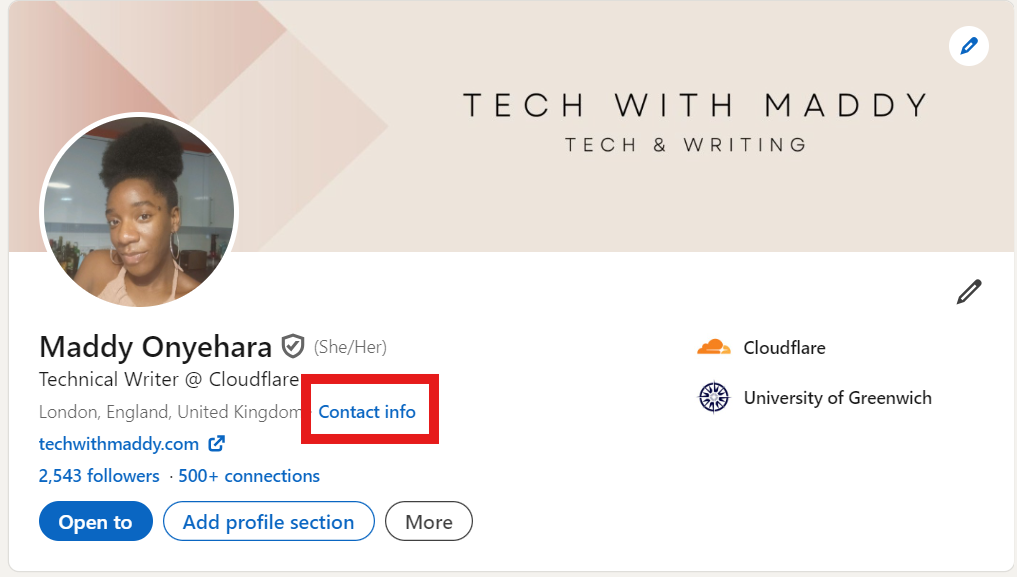
Your contact information: Ensure you have your email address displayed on your email to allow other LinkedIn users to contact you directly. To update your contact information, select Contact info on your LinkedIn profile:
2. Update your profile intro
Your profile intro is where you tell other users about:
Basic info: Name and Surname
Pronouns
Headline: Here, you can add your job title.
Current position
Industry
Education
Location
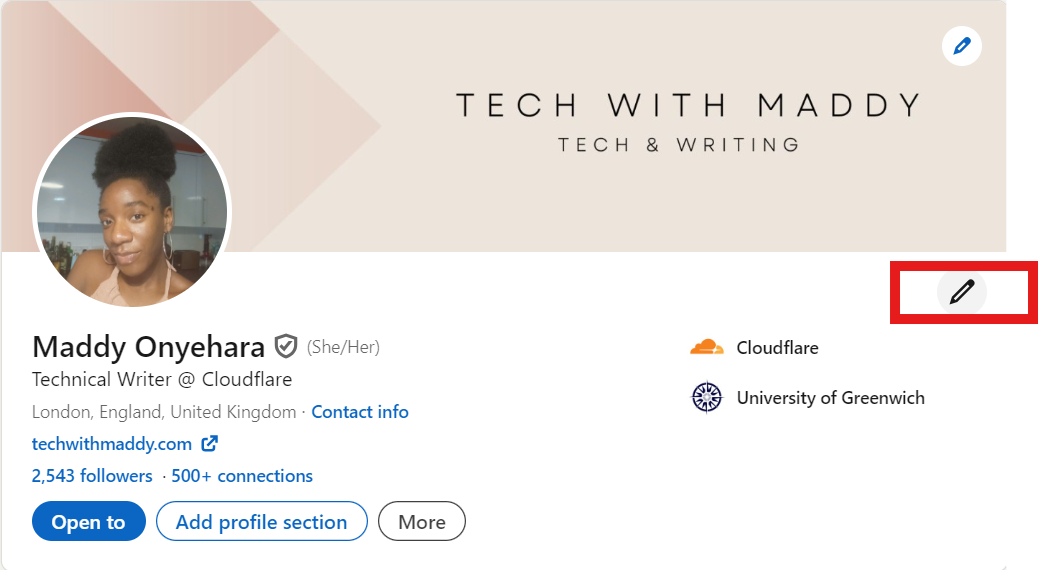
To update your profile intro, select the pencil icon on the right:
3. Add or update the experience section
The experience section is the most compelling section of your profile. Unlike a CV, you can add all your work experience on LinkedIn, ideal if you've been in the workforce for over 10 years. To add experiences to your profile:
- Select the + button under Experience:
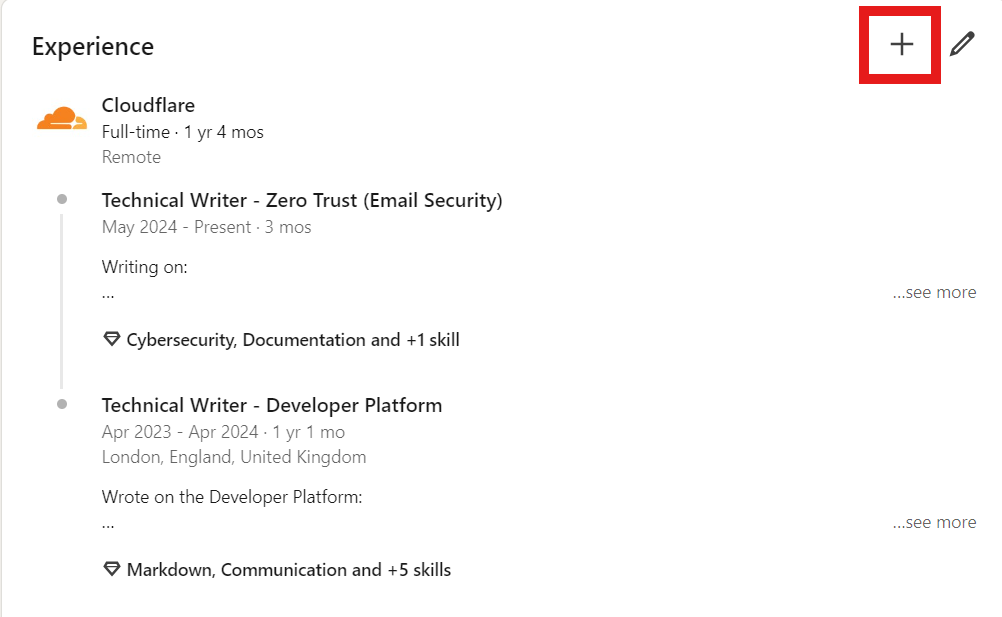
2. Select Add position.
3. Fill in all the required information:
Title
Company name
Start date - End date
Add skill: Adding a skill allows you to keep track of your skills in a specific job and helps recruiters search for candidates with certain skills. Add up to five skills for each position.
Add positions within the same company
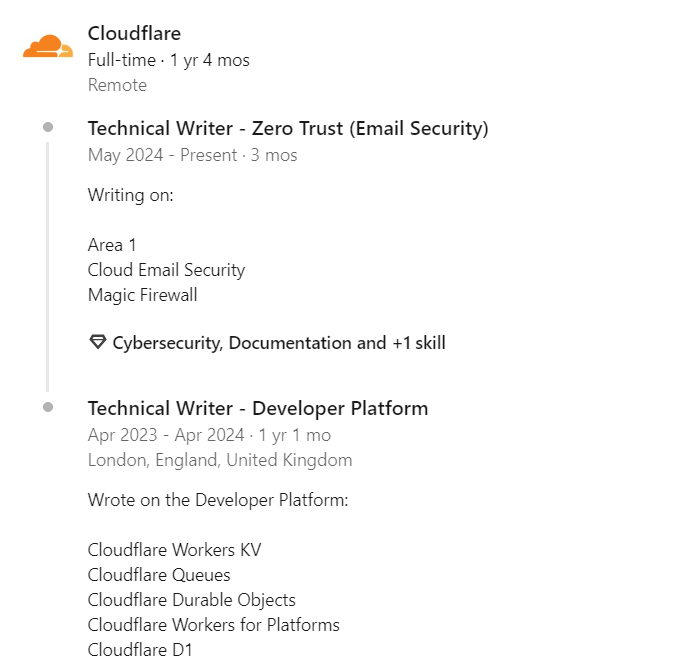
LinkedIn allows you to showcase the positions in the same company as part of a singular experience. An example is this:
Use this LinkedIn feature to:
Reflect on the work done within the company: The example above displays the transition from one product group to another.
Reflect promotions.
To add multiple experiences within the same company:
Add one experience, but ensure you add the following:
End date.
Company name.
Add a second experience with the same company name (the URL must be the same) as the above-mentioned step. LinkedIn will automatically rearrange the experience, as in the screenshot above.
4. Add education section
On LinkedIn, you can choose to add an education section. Add this section to:
Display any bachelor's degree, master's degree, or PhD.
Any academy attended.
Any professional school attended.
To add an education section:
Select Add profile section.
Select Add education.
5. Add certifications
LinkedIn allows you to list any certification on your profile. Certifications can be:
Information Technology and Computer Science certifications, such as AWS certifications, CompTIA certifications, etc.
Project management certifications.
Language proficiency certifications.
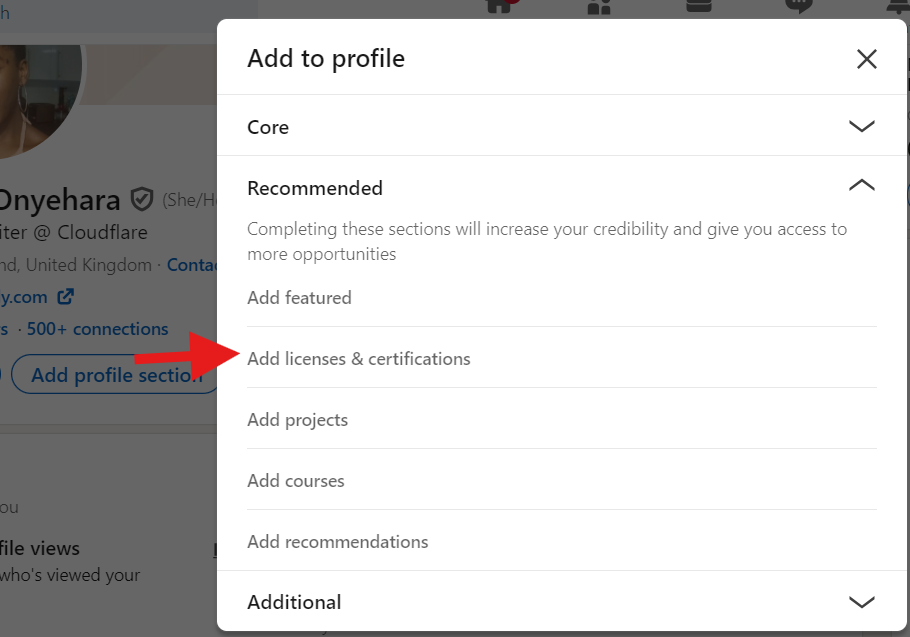
To add certifications:
Select Add profile section.
Select Recommended.
Select Add licenses & certifications.
6. Use LinkedIn search
LinkedIn search is a powerful feature that helps people find jobs, companies, and more.
How to use LinkedIn search for jobs
To search for jobs on LinkedIn, on the search bar:
Enter "software engineer" (or any other jobs you're looking for). Try adding double quotes if the search returns unrelated results.
Select the Jobs filter.
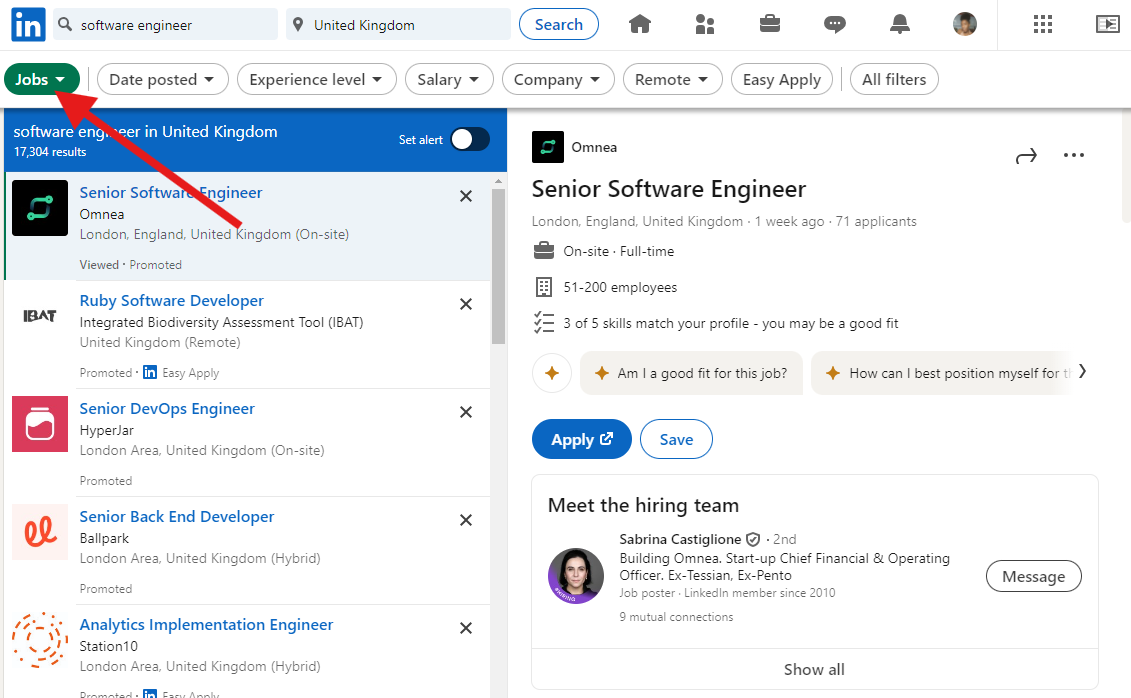
LinkedIn search allows you to narrow down your search. For example, you can search for a remote, entry-level job with a salary of no less than £30,000 a year. To do this:
Select Experience level > Entry level (and/or Associate) > Show results.
Select Salary > £30,000+ > Show results.
Select Remote > Remote > Show results.
How to use Boolean search
You may notice that LinkedIn returns unrelated results despite entering "software engineer" in the search bar. To ensure LinkedIn search returns more related results, you can use AND, NOT, or OR in the search bar. The keywords must be in a capital case. An example is this:
- You entered software engineer in the search bar, but you also get DevOps roles:
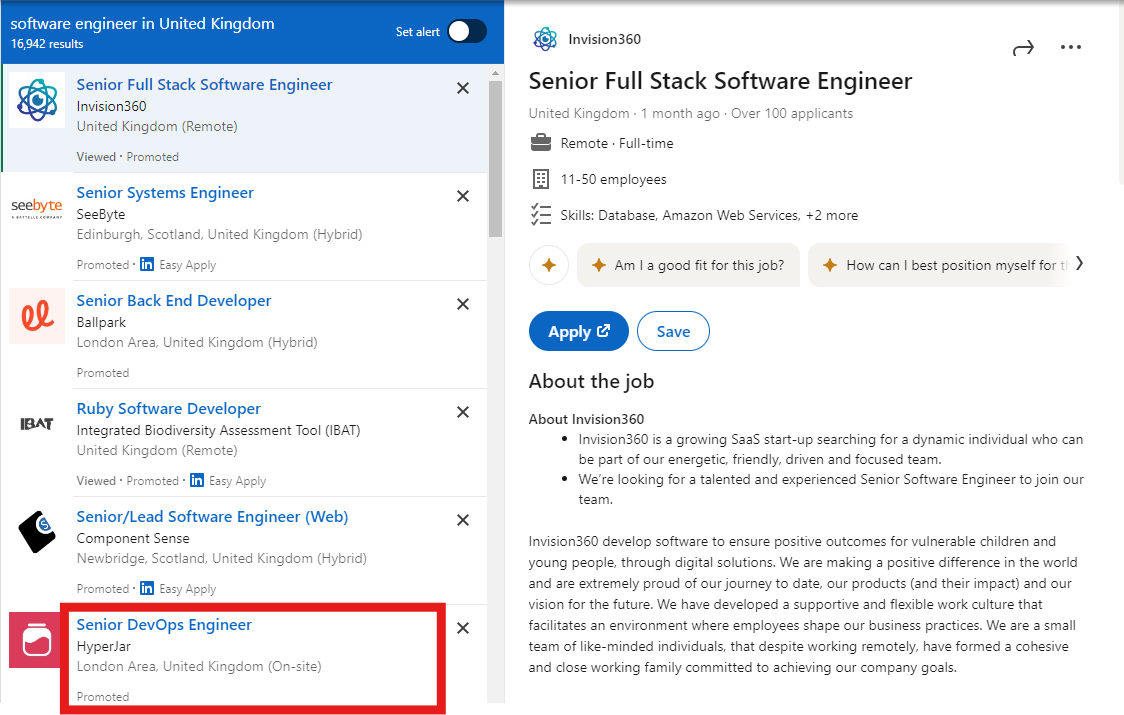
To exclude DevOps roles, enter "software engineer NOT devops", and you should receive more related results:
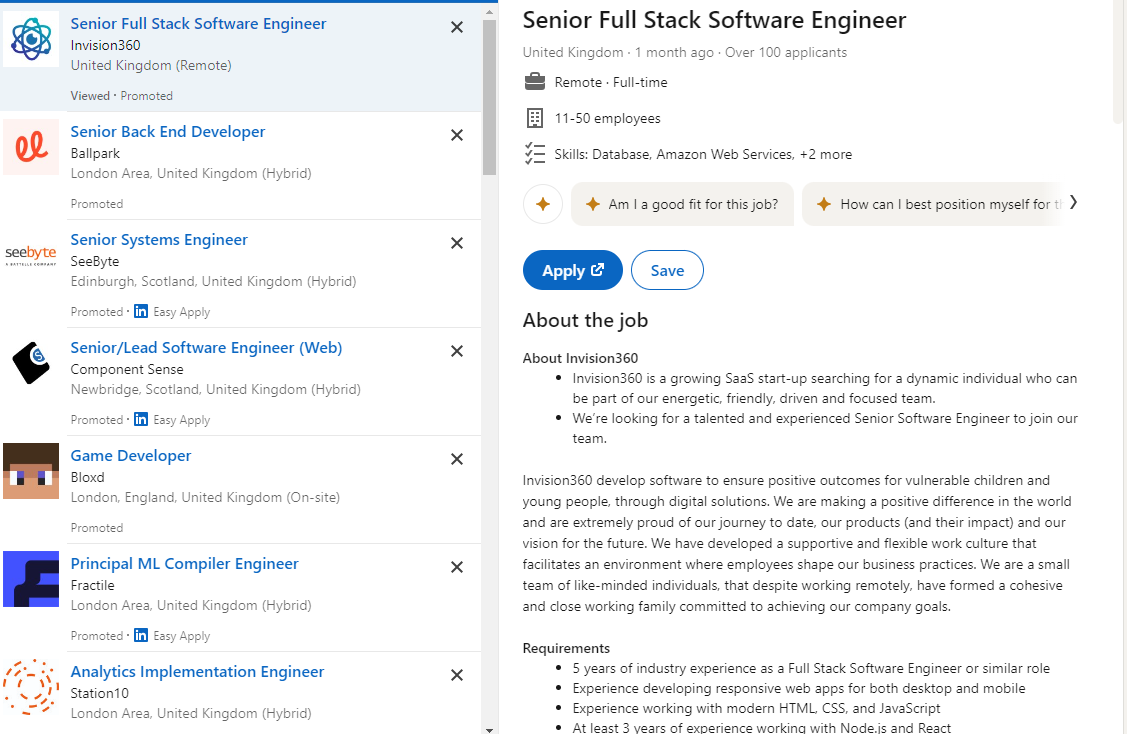
You can perform a similar search with AND, and OR.
How to use LinkedIn to search for recruiters
LinkedIn allows you to search for people in general. However, I want to teach you how to search for recruiters who work at a specific company in this article. To do this:
On the search bar, enter "Technical recruiter".
Select People at the top.
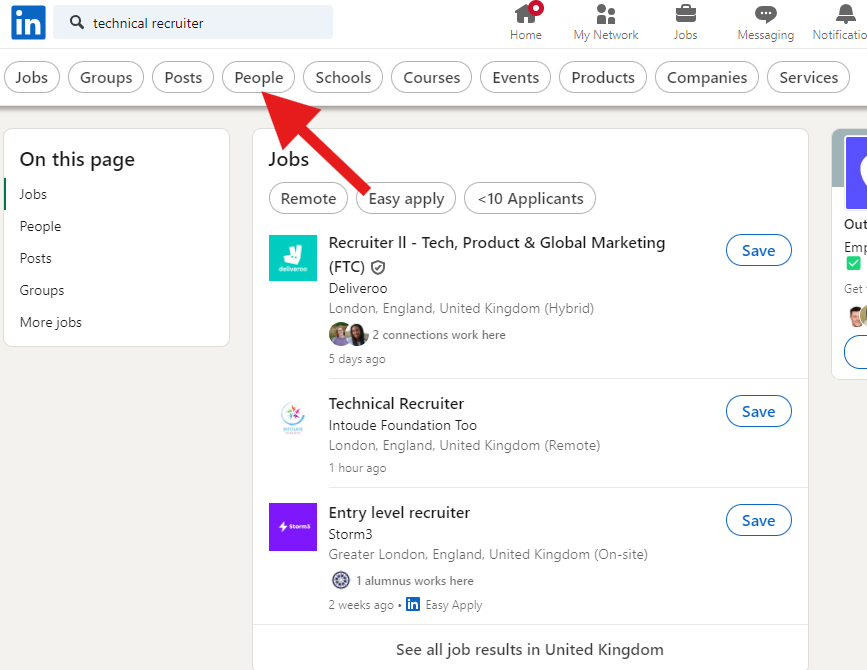
Select Current company, and choose Meta (or any other company).
Select Show results.
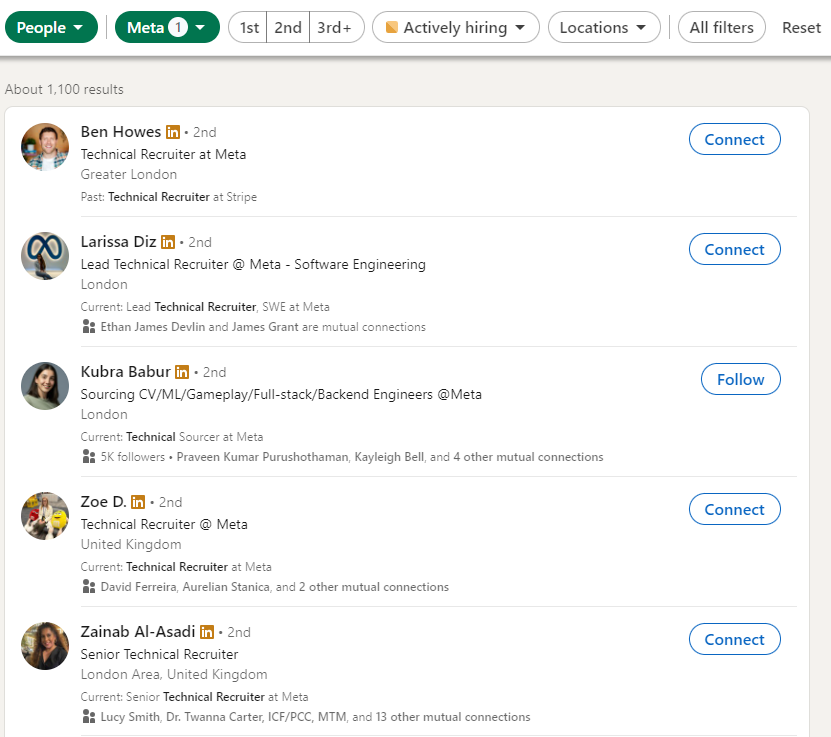
The screenshot above displays all the technical recruiters employed at Meta.
7. Add a Skills section
The Skills section allows you to list all your skills.
To add skills to your profile:
Select Add profile section at the top of your profile.
Select Core > Add skills:
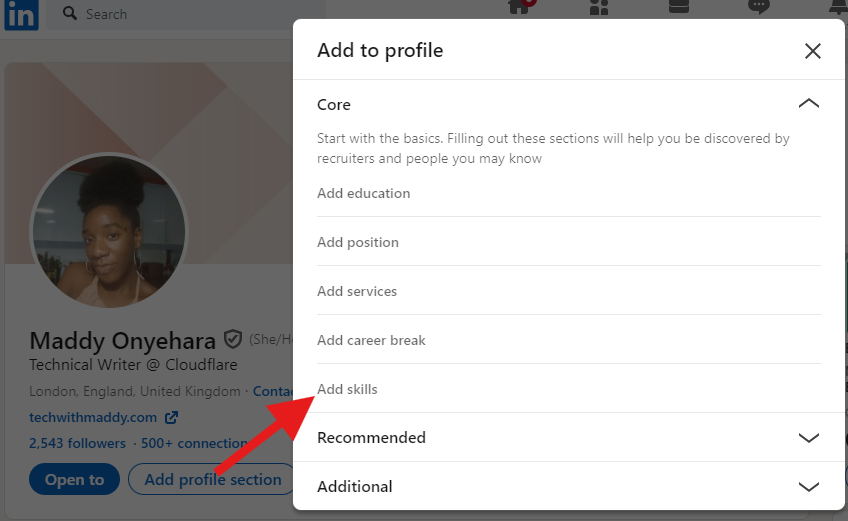
Select all the skills that apply to you.
Select Save.
About the author
Software engineer turned technical writer.
Comments
Join the discussionNo comments yet. Be the first to comment.


